

Simplify your WordPress workflow!
Build faster, cleaner, and more reliable WordPress websites using lightweight plugins designed for real-world workflows.
Get started now
The Style tab decides how the gallery looks: what happens when the mouse is over an image, where the titles and captions are, the colours and the font. Every change shows in the preview at once.
| Effect | What it does |
|---|---|
| None | the image stays as it is |
| Zoom | the image grows slowly inside its cell |
| Fade overlay | a coloured layer with the title fades in |
| Caption move | the caption slides up from the bottom |
| Grayscale to color | black-and-white images get their colours back |
| Blur | the image blurs behind the title |
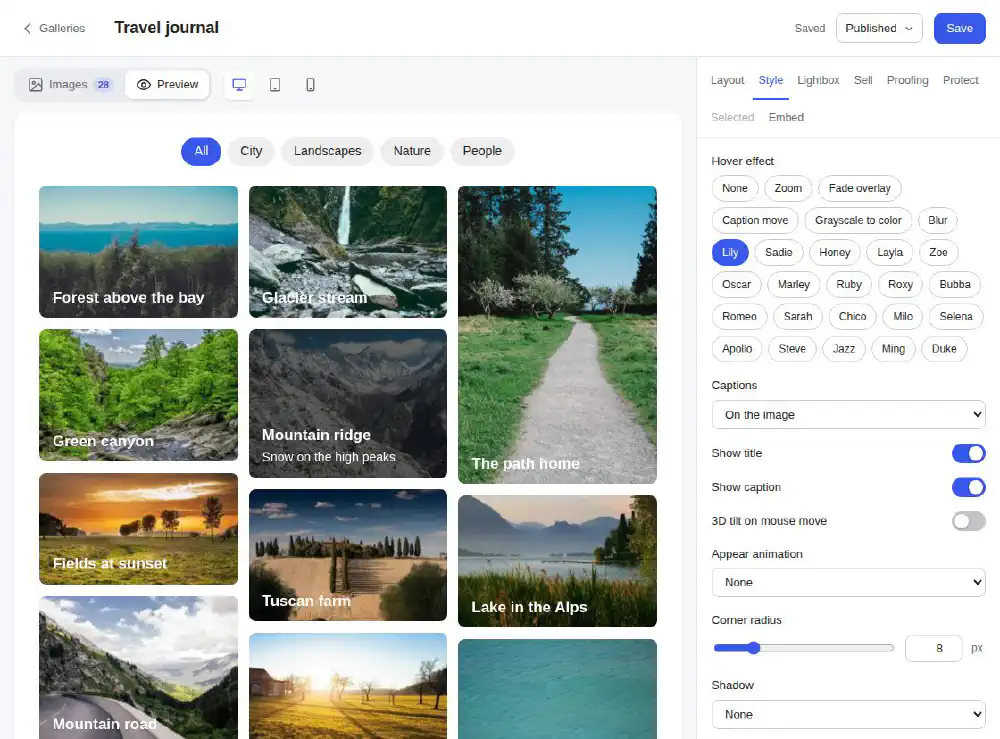
And 20 effects inspired by Codrops’ Hover Effect Ideas, each with its own movement of lines, frames and text: Lily, Sadie, Honey, Layla, Zoe, Oscar, Marley, Ruby, Roxy, Bubba, Romeo, Sarah, Chico, Milo, Selena, Apollo, Steve, Jazz, Ming and Duke. Pick one from the effect list — each one plays on its own preview.
Touch screens have no hover: there the titles and captions are shown all the time, and a tap opens the image.
Titles and captions come from the images — see Managing images.
Both are left out for visitors who switched on “reduce motion” in their system settings.
| Setting | Meaning |
|---|---|
| Corner radius | 0–40 px |
| Shadow | None, Soft or Strong |
| Overlay color | the layer of the hover effects, with opacity |
| Caption text color | the text on the image |
| Text color below images | when captions are below |
| Accent color | the active filter button, page numbers and load more, the slider’s dots and thumbnails, details of some hover effects |
Every colour has a picker, an opacity slider and a text field for any CSS colour (#1d2327, rgba(0,0,0,.6)).
Font is empty by default: the gallery uses your theme’s font. Type the name of any Google Font, e.g. Playfair Display, to load it for this gallery. Title size (10–40 px) and Caption size (9–28 px) set the text sizes.
The font is loaded from Google only when you type one. Sites that may not contact Google can switch this off for all galleries with the pgrb_load_google_fonts filter:
add_filter( 'pgrb_load_google_fonts', '__return_false' );
A gallery is a <photo-gallery-rb> element with its own Shadow DOM, so the theme’s CSS cannot reach inside by accident. Two ways in are open on purpose.
Every setting above is a CSS custom property you can set from the theme, for all galleries or one of them:
photo-gallery-rb {
  --photo-gallery-rb-gap: 4px;
  --photo-gallery-rb-radius: 0;
  --photo-gallery-rb-accent: #c2185b;
  --photo-gallery-rb-font: "Inter", sans-serif;
}
| Property | Setting |
|---|---|
--photo-gallery-rb-gap |
Spacing |
--photo-gallery-rb-cols, -cols-t, -cols-m |
Columns on desktop, tablet, phone |
--photo-gallery-rb-aspect |
Thumbnail shape, e.g. 4/3 |
--photo-gallery-rb-row-h |
Row height of the justified layout |
--photo-gallery-rb-slider-h, -per-view |
Slider height, slides per view |
--photo-gallery-rb-radius |
Corner radius |
--photo-gallery-rb-overlay, -text, -below, -accent |
The colours |
--photo-gallery-rb-font, -title-size, -cap-size |
Font and text sizes |
A value set in the theme wins over the gallery’s setting.
The main pieces of a gallery can be styled with ::part():
photo-gallery-rb::part(title) {
  text-transform: uppercase;
  letter-spacing: .08em;
}
The parts: gallery, filters, items, image, overlay, title, caption, below, arrow, dots, thumbs and pager.
The lightbox is an element of its own, <pgrb-lightbox>, with the parts lightbox, toolbar and share:
pgrb-lightbox::part(toolbar) {
  background: rgba(0, 0, 0, .4);
}
Build faster, cleaner, and more reliable WordPress websites using lightweight plugins designed for real-world workflows.
Get started now