

Simplify your WordPress workflow!
Build faster, cleaner, and more reliable WordPress websites using lightweight plugins designed for real-world workflows.
Get started now
With Photo Gallery RB PRO any gallery can sell its photos. Every photo gets a Buy button — on the image and in the lightbox — and the buyer chooses from your price list: a digital download, a print, or anything else you offer.
You choose how the buyer pays:
Both can be used on one site: each gallery has its own choice.
Open the gallery’s Sell tab:
| Setting | Meaning |
|---|---|
| Sell photos from this gallery | turns selling on |
| Checkout | WooCommerce cart or Built-in checkout: Stripe / PayPal (without WooCommerce only the built-in checkout is offered) |
| What is for sale | the price list: every photo of the gallery is offered with these options |
| Button text | e.g. Buy, Order a print |
Each option of the price list has a name, a price and a kind:
For example: Digital download — 10, Print 20×30 cm — 25, Print 30×45 cm — 40. Click Add an option for more. The price is always taken from the gallery when the photo goes into the cart; nothing the browser sends can change it.
With WooCommerce active and Checkout → WooCommerce cart:
Photo Gallery RB does not add a product per photo: two hidden products, Photo — digital download and Photo print, carry the photos into the cart. Keep them; they do not show in the shop. The prices of the price list are in WooCommerce’s currency.
When the order is paid, every digital line gets a Download original button on the order page, in My Account → Orders and in the order emails.
Open Photo Gallery → Shop & Payments:
| Setting | Meaning |
|---|---|
| Currency | of the built-in checkout: USD, EUR, GBP, PLN, UAH, CAD, AUD, CHF, SEK, NOK, DKK, CZK or JPY (galleries that sell through WooCommerce use WooCommerce’s currency) |
| Stripe: Secret key | Stripe Dashboard → Developers → API keys. A sk_test_… key lets you try everything with Stripe’s test cards |
| Stripe: Webhook signing secret | optional but recommended — see below |
| PayPal: Client ID, Secret | developer.paypal.com → Apps & Credentials → your app |
| PayPal: Sandbox | for test payments with sandbox keys |
| Links work for (days) | how long download links work |
| Downloads per photo | how many times each bought photo can be downloaded |
| Order notifications to | your email for new orders; empty — the site admin email |
Only the methods with keys are offered to buyers. Saved keys are never shown again: type over a key to replace it, or tick Remove.
Stripe webhook. In Stripe, open Developers → Webhooks → Add endpoint, enter the address shown on the settings screen (https://your-site/wp-json/pgrb-pro/v1/stripe), choose the event checkout.session.completed and paste its whsec_… secret. Then an order is confirmed even if the buyer closes the browser right after paying. Without it, orders are confirmed when the buyer comes back from Stripe.
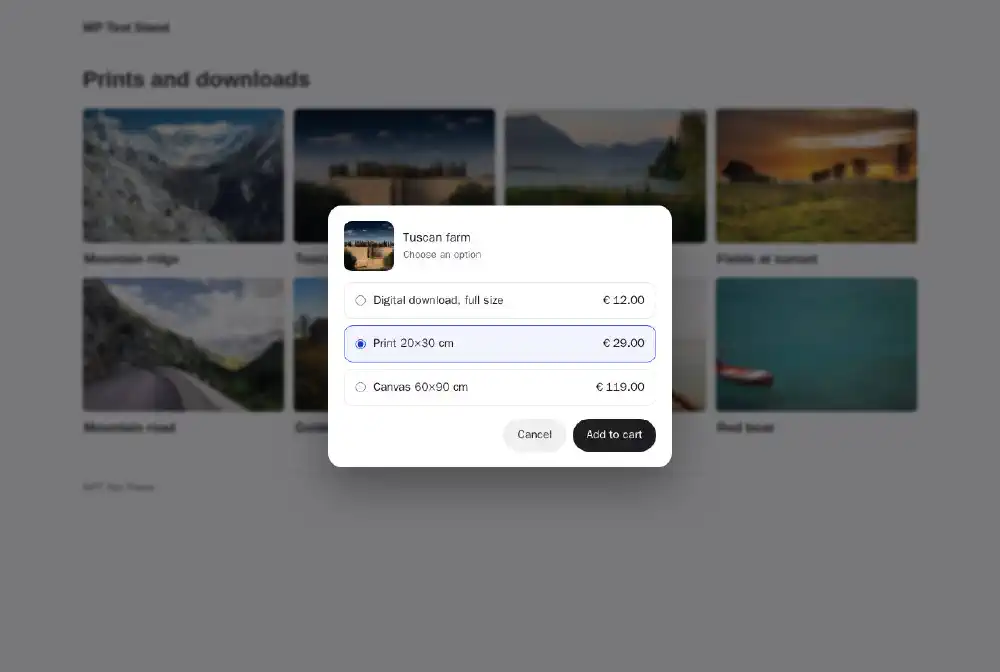
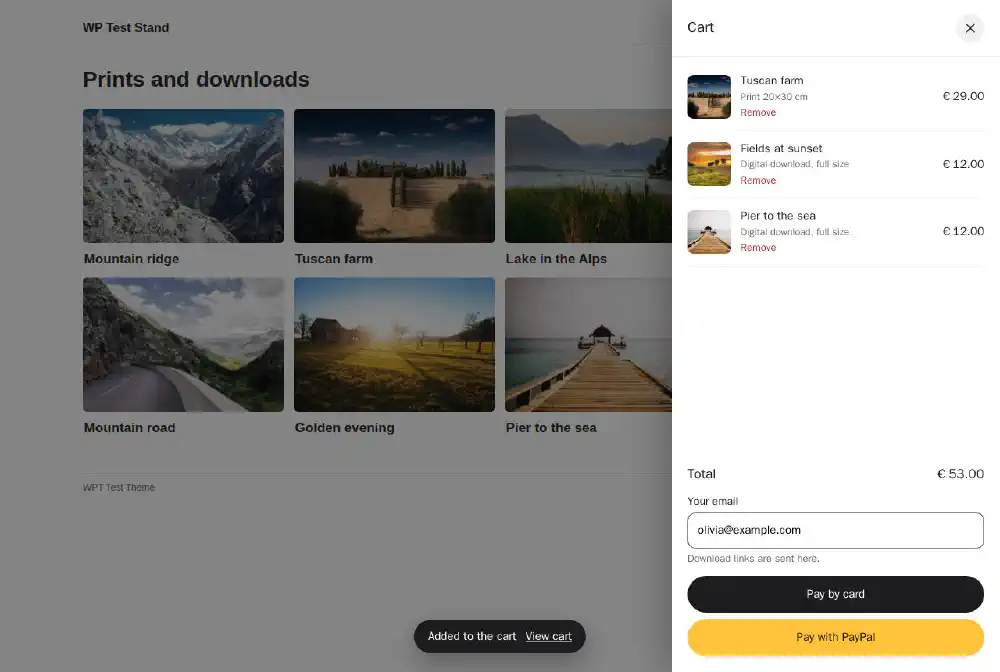
The cart is kept in the browser, so it survives a reload and a walk through several galleries.
For prints, we recommend the WooCommerce cart for now: it collects the shipping address with the order.
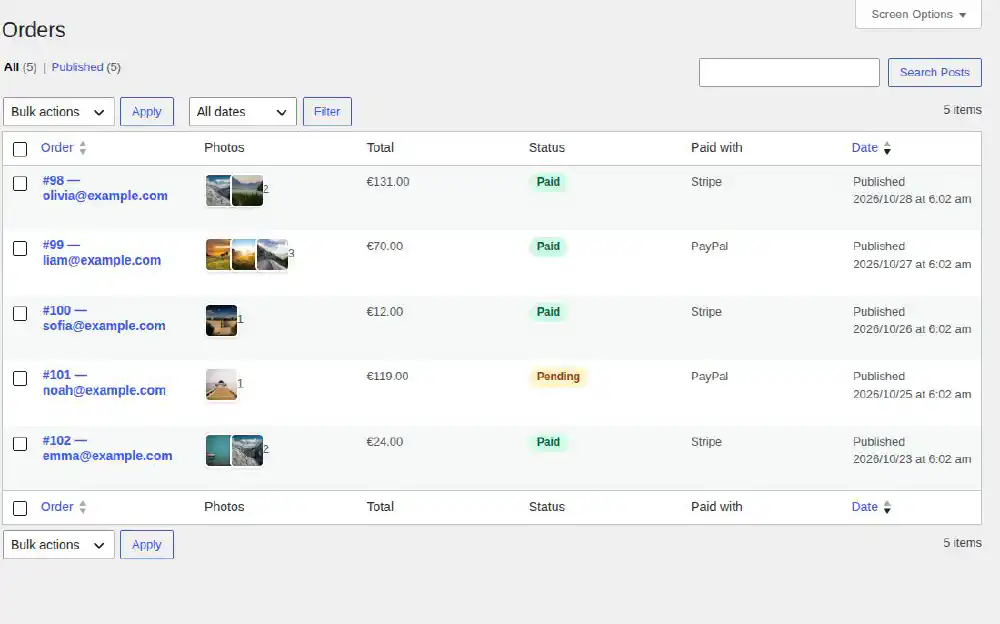
Photo Gallery → Orders lists the orders of the built-in checkout: the buyer’s email, the photos, the total, the status (pending, paid, failed) and the payment method. On an order:
A bought photo is never downloaded from its address in the Media Library. The buyer gets a link of their own:
The link gives the original file, as you uploaded it. When a link has expired or was used up, the buyer sees a clear message and can ask you: Send the links again gives them fresh links.
Turn off the lightbox’s Download button in galleries that sell — see Lightbox — and consider protecting the photos on the page.
Build faster, cleaner, and more reliable WordPress websites using lightweight plugins designed for real-world workflows.
Get started now