

Simplify your WordPress workflow!
Build faster, cleaner, and more reliable WordPress websites using lightweight plugins designed for real-world workflows.
Get started now
Proofing is how a photographer and a client choose photos together. You publish the gallery of a shoot; the client opens it, marks the photos they want — for the album, for retouching, for print — writes a note on some of them and sends you the selection. You get an email with the list, ready to paste into Lightroom, and the selection is kept under Photo Gallery → Proofing.
Proofing is part of Photo Gallery RB PRO and is set up per gallery, on its Proofing tab.
Turn on Client proofing, then choose Who can open it:
| Access | For |
|---|---|
| Anyone with the password | one password for the whole gallery: a family, a team, a couple |
| Clients with a personal link | each client gets a link of their own, and you see whose selection is whose |
| Everyone who sees the gallery | an open vote, e.g. picking the cover of a booklet |
Type the Password. A visitor first sees a form: This gallery is private — Enter the password the photographer gave you. With Ask for name and email first on, the form also asks for the client’s name and email, so you know whose selection it is.
Click Add a client, type the client’s name and, if you like, email, and save the gallery. Each client gets a link — Copy link and send it by email or messenger. Without a link, the gallery is not shown at all: Open it with the personal link the photographer sent you. To stop a link from working, Remove the client.
Client page gives you an address with just this gallery on a clean page — no menus, no sidebars — ready to send. The gallery also works with proofing wherever its shortcode or block is.
| Setting | Meaning |
|---|---|
| Comments on photos | the client can write a note on each photo |
| Most photos a client can pick | e.g. 30 for an album; 0 — no limit |
| Lock the selection once sent | after sending, the client can look but not change it |
| Send selections to | your email; empty — the site admin email |
| Message to clients | a text above the gallery, e.g. Pick up to 30 photos for the album by Friday |
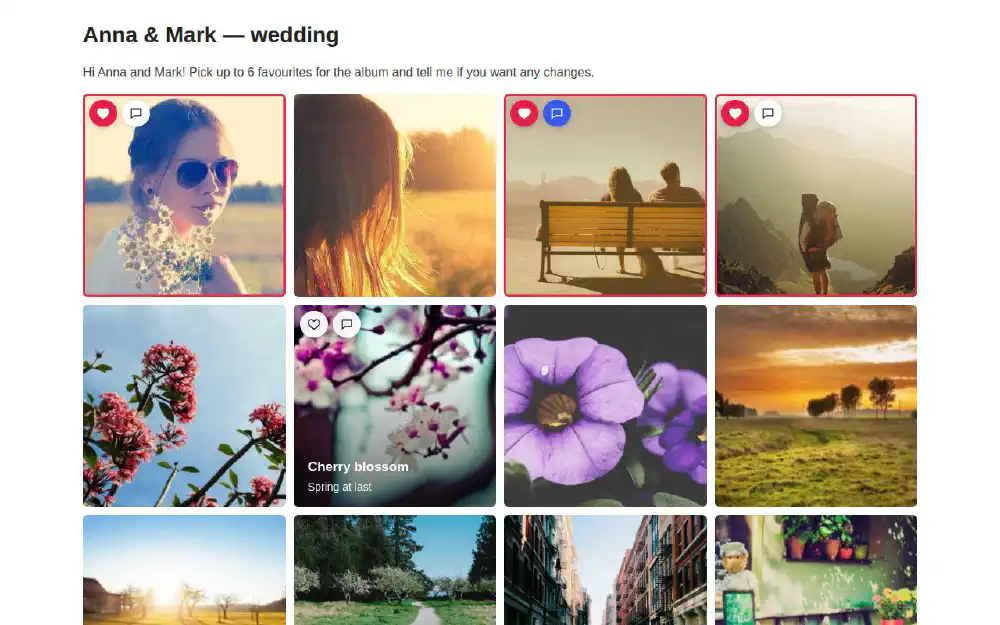
Every mark and comment is saved at once. A client can close the page and come back later in the same browser — or, with a personal link, on any device — and continue where they stopped.
After sending, the client gets an email with their selection, and you get yours.
The subject says who picked how many photos in which gallery, e.g. Anna picked 12 photos in “Wedding in Kraków”. The email has the client’s name and email (a reply goes straight to the client), their message, a thumbnail of every picked photo with its file name and comment, and the Lightroom list:
DSC_0142, DSC_0157, DSC_0201
Lightroom shows only the picked photos: select them all and give them a flag, a colour label or a collection of their own.
Photo Gallery → Proofing keeps every selection, sent or still in progress.
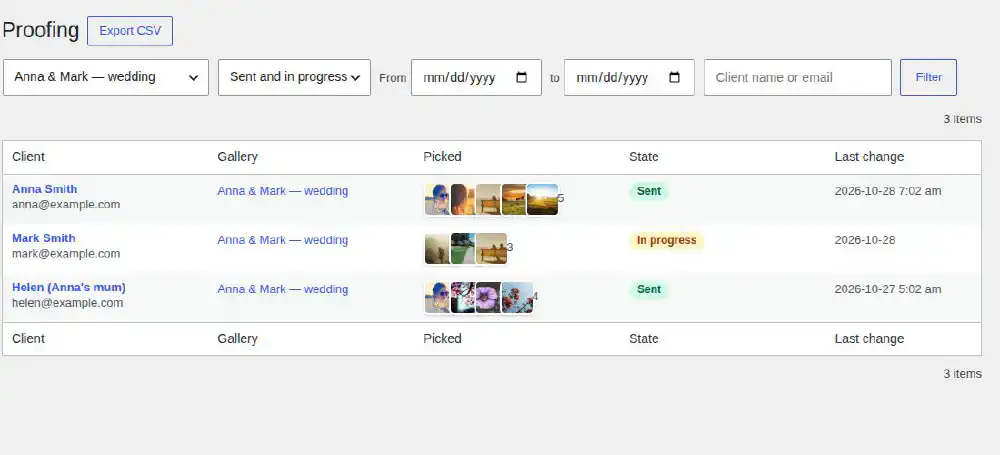
| Column | Meaning |
|---|---|
| Client | name and email |
| Gallery | the gallery of the selection |
| Picked | how many photos |
| State | Sent or In progress |
| Last change | when the client last picked, commented or sent |
Filter the list by gallery, by state, by date (From … To), and search by the client’s name or email. Export CSV downloads the filtered list for a spreadsheet.
Open a selection to see the picked photos with their comments, the client’s message and the Lightroom list. Actions:
A gallery can do both: clients pick their photos with proofing, and buy extra ones or prints through the Sell tab — see Selling photos.
Build faster, cleaner, and more reliable WordPress websites using lightweight plugins designed for real-world workflows.
Get started now