

Simplify your WordPress workflow!
Build faster, cleaner, and more reliable WordPress websites using lightweight plugins designed for real-world workflows.
Get started now
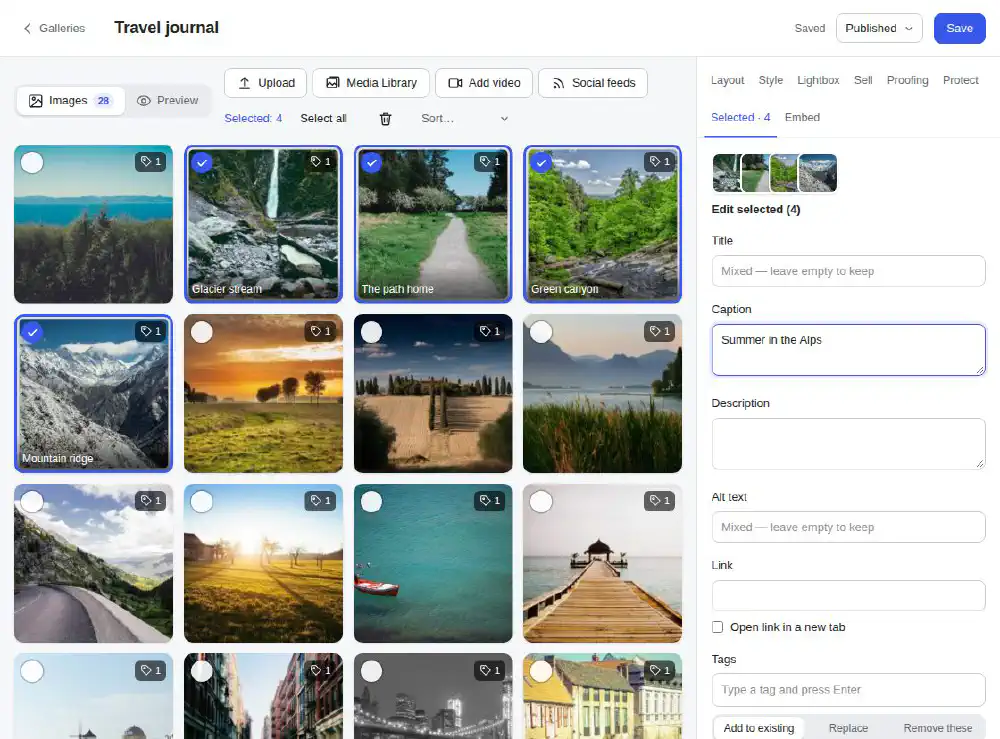
Open a gallery under Photo Gallery → All Galleries, or make a new one with Add Gallery. The left side of the editor holds the gallery’s items — photos, videos and feeds — in the order they are shown.
Uploaded files go to the Media Library like any other image, so other plugins (image optimizers, CDNs, backups) treat them as usual.
Click Add video and paste a link:
youtube.com/watch?v=…, youtu.be/…, Shorts and live videos)The thumbnail and title are fetched automatically. The video plays in the lightbox. A video’s title and caption are stored in the gallery, not in the Media Library.
Drag thumbnails to move them. Several selected images move together. With the keyboard: focus a thumbnail and press Alt + arrows.
Sort puts the items in order once — by file name, by title or by the date the photo was taken — and Reverse turns the order around. To change the order on the site without moving the items, use the Order setting of the layout.
Select all and Clear selection are above the grid. The toolbar shows how many are selected.
Select the images and click Edit selected. The panel shows the fields of all of them:
| Field | Where it is used |
|---|---|
| Title | on the image, below it and in the lightbox |
| Caption | under the title |
| Description | the lightbox’s longer text |
| Alt text | for screen readers and search engines |
| Link | where the image leads when On click is Follow the image link; with Open link in a new tab |
| Tags | the filter buttons above the gallery |
A field the selected images do not share says Mixed — leave empty to keep: leave it empty and each image keeps its own value; type something and all of them get it. For tags choose what happens: Add to existing, Replace or Remove these. Click Apply to selected to save the changes to the images.
Title, caption, description, alt text, link and tags belong to the image in the Media Library, so they are the same in every gallery that shows it.
Tags are kept on the images (Photo Gallery → Tags) and make the filter buttons of a gallery — see Filters. Type a tag in the editor’s Tags field and press Enter.
When a photo is uploaded, its camera information is read from the file: camera, lens, focal length, aperture, shutter speed, ISO and the date it was taken. It can be shown in the lightbox (Camera info (EXIF)) and Sort → By date taken puts the photos in the order they were shot.
The right side shows the real gallery, with its layout, effects and lightbox, as visitors will see it. Switch between Desktop, Tablet and Phone to check the columns of each width.
Build faster, cleaner, and more reliable WordPress websites using lightweight plugins designed for real-world workflows.
Get started now