

Simplify your WordPress workflow!
Build faster, cleaner, and more reliable WordPress websites using lightweight plugins designed for real-world workflows.
Get started now
The Layout tab of the gallery editor decides how the items are arranged. Pick a layout at the top; the settings below change with it, and the preview follows every change.
A layout can also be changed for one place only — in the block, in the Elementor or Divi module, or in the shortcode (layout="masonry") — without changing the gallery. See Publishing.
| Layout | What it does | Its settings |
|---|---|---|
| Grid | equal cells in columns, every image cropped to one shape | Columns, Thumbnail shape |
| Masonry | columns of images in their own proportions, no cropping | Columns |
| Justified | rows of equal height that fill the width, like Flickr or Google Photos | Row height |
| Tiles | a mosaic of big and small cells repeating in a pattern | Tiles pattern |
| Slider | one or more images at a time with arrows, dots and thumbnails | Slider settings |
Thumbnail shape: Square 1:1, Landscape 4:3 or 3:2, Wide 16:9, Portrait 3:4 or 2:3. Images are cropped to the shape around their centre; the lightbox always shows the whole photo.
Every image keeps its proportions; the columns fill from left to right, so the order reads along the rows.

Row height (80–600 px) is the height the rows aim at: each row is scaled a little to fill the width exactly. The last row is not stretched.
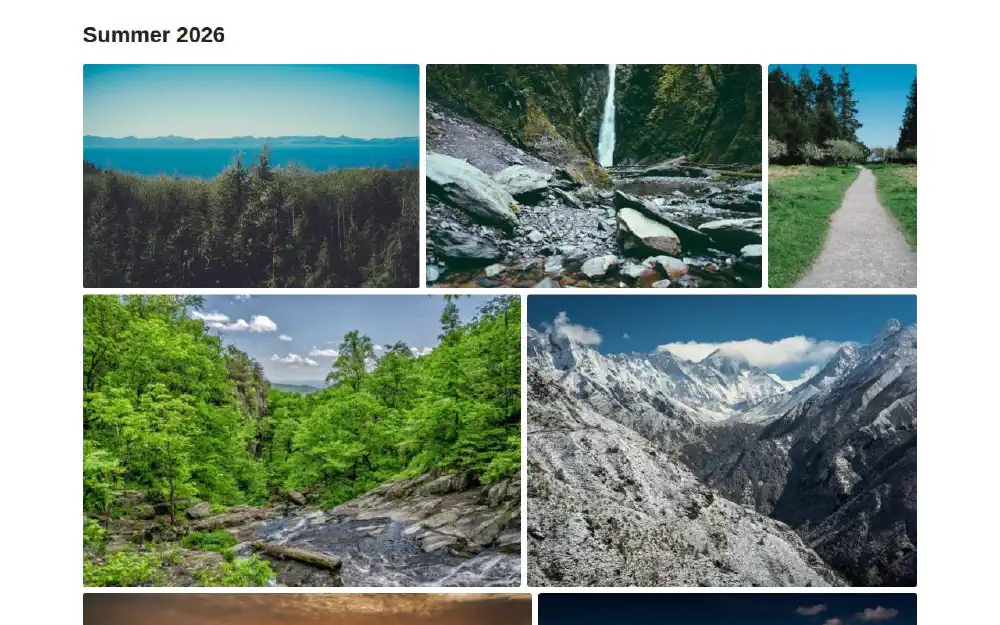
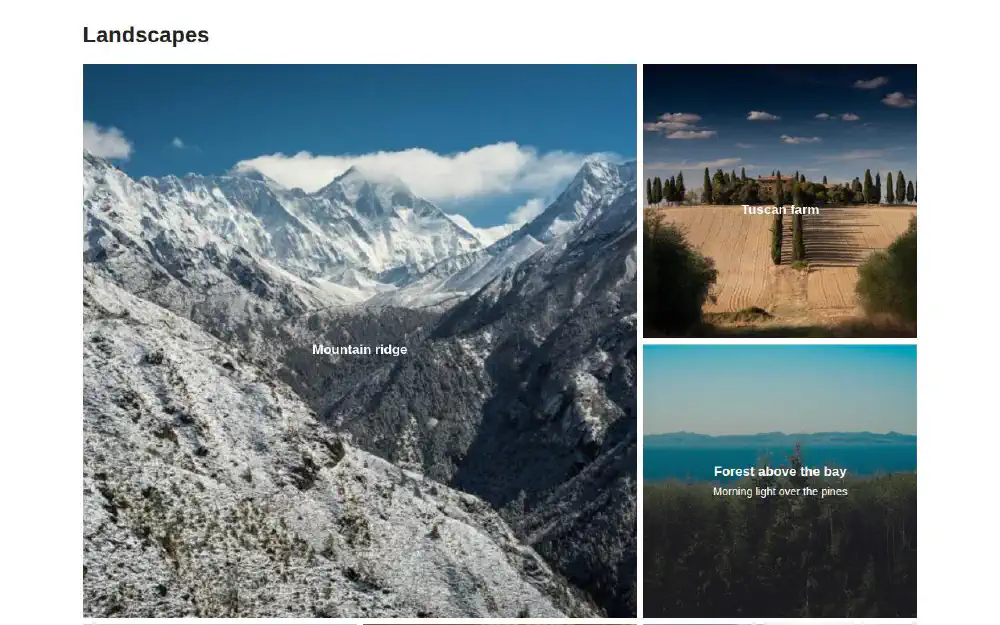
Five patterns of large and small cells. Pick one by its picture; the pattern repeats along the whole gallery. Where the gallery is narrower than 600 px the pattern uses two columns.
| Setting | Meaning |
|---|---|
| Slider effect | Slide, Fade or Coverflow (the side slides turn away in 3D) |
| Slides per view | 1–5 images at a time, with the Slide effect (Fade and Coverflow show one image, Coverflow with its neighbours beside it) |
| Slider height | 160–1000 px |
| Autoplay, Autoplay interval | moves on by itself every 1–20 seconds; stops while the mouse is over it |
| Arrows, Dots, Thumbnails strip | the controls under and beside the slider |
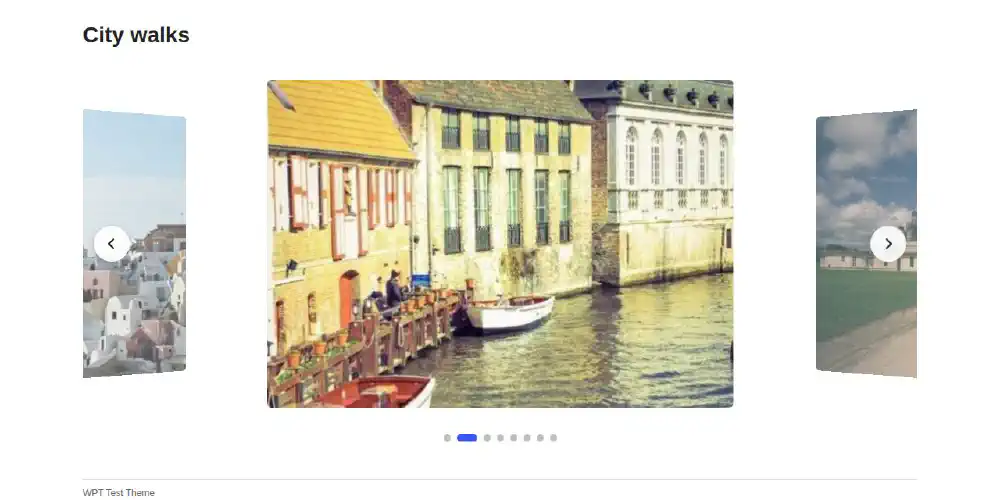
The slider can be swiped on phones, and moved with the arrow keys once it has the focus.
Grid and masonry have three column settings:
The widths are measured on the gallery itself, not on the window: a gallery in a narrow sidebar uses the phone columns even on a desktop.
| Order | Shows the items |
|---|---|
| As arranged | in the order of the editor |
| Newest first / Oldest first | by the date they were added to the Media Library |
| By title | alphabetically |
| Random | in a new order on every visit — the same order on all pages of one visit |
Turn on Filter by tags to show buttons above the gallery, one for every tag of its images, plus an “All” button. A click shows only the images with that tag.
Tags are given to images in the editor; feed items get the tag of their feed.
Large galleries do not need to load at once:
| Pagination | Behaviour |
|---|---|
| Show all | every item at once |
| Load more button | the first page, then a button for the next |
| Infinite scroll | the next page loads when the visitor gets near the end |
| Page numbers | pages 1, 2, 3 … under the gallery |
Items per page sets the size of a page (1–100). Filters work across all pages: a filter button asks for that tag’s images of the whole gallery, not only of the loaded page.
Build faster, cleaner, and more reliable WordPress websites using lightweight plugins designed for real-world workflows.
Get started now